
Local Wi-Fi conditions
Distance, walls, interference and a weak signal can reduce the consistency of data reaching the viewing device.
Playback diagnostics
Buffering, freezing, video/audio sync problems and unstable playback can have more than one cause. Work through the checks in order so you can separate local Wi-Fi or device issues from player settings, network routing and temporary server/source conditions.
Start with the cause, not a guess
Playback problems are not evidence of one universal fault. They can come from the viewing device, the local network, the player, the wider internet route, or temporary server/source conditions.
Distance, walls, interference and a weak signal can reduce the consistency of data reaching the viewing device.
Busy local networks, wider internet congestion and changing network routes can affect playback even when a speed test appears acceptable.
Low free storage, limited memory, heat or heavy background activity can make a player less responsive or disrupt decoding.
Cache, decoding and buffer settings can influence playback. A setting that helps one device may not be appropriate for another.
DNS can affect how a device resolves service addresses, but changing DNS is only a diagnostic option, not a guaranteed performance fix.
Some interruptions are temporary and outside the local device. Avoid making many unrelated configuration changes at the same time.
BT, Sky, Virgin Media, Vodafone, TalkTalk and other UK providers can use different network and router configurations. Diagnose the device and connection you actually have rather than assigning blame without evidence.
Ordered diagnostic sequence
Test after each change. If playback improves, stop changing settings so you know which step mattered.
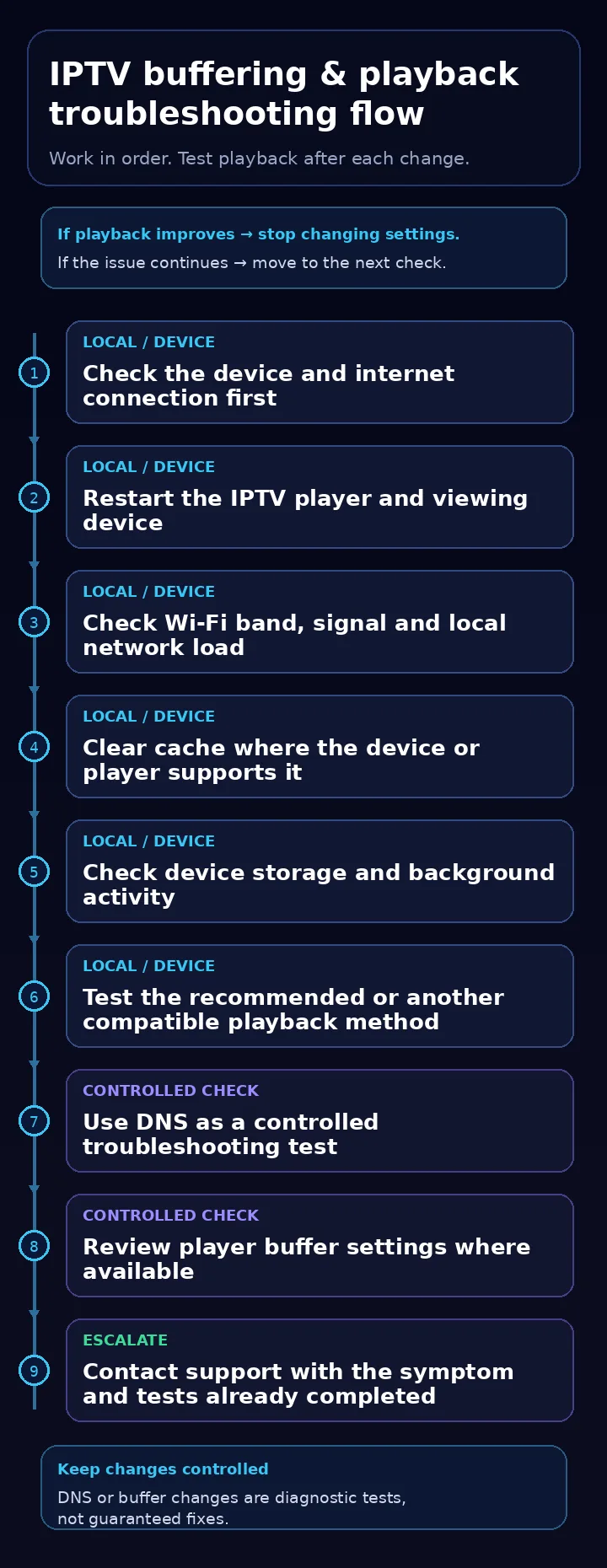
Confirm the device itself is online and, where possible, compare playback on a wired or stronger Wi-Fi connection before changing account or player details.
Close and reopen the player, then restart the viewing device so temporary app or device state is cleared before further testing.
If your router and device support both bands, compare 5 GHz for stronger nearby performance with 2.4 GHz for longer reach, and reduce avoidable local network load while testing.
Use the device or player controls to clear temporary cache only where that option is available, then reopen the player and test again.
Make sure the device has usable free storage and close unnecessary background apps or processes that may compete for memory or processing time.
If Teleget support has recommended a compatible player or method for your setup, test that supported option without changing unrelated subscription credentials.
Controlled technical checks
These settings are useful diagnostics only when the device or player exposes them. Record the original value first so you can revert it.
If a DNS issue is suspected, test a reputable DNS resolver through your router or device settings only if you are comfortable reverting the change; DNS changes are not a guaranteed fix.
If the player exposes a buffer setting, make one conservative change at a time and compare results. Larger or smaller values can behave differently across devices and networks.
If buffering, freezing or sync problems continue, share the device, player, connection method, symptom and checks already completed so support has useful diagnostic context.
Device and support context
If the problem began during installation or after changing setup information, confirm the device-specific setup before continuing with deeper playback changes.
Review the current Standard and Premium options on the homepage. Troubleshooting guidance does not change the published plan terms or promise a particular playback result. View Teleget subscription plans.