
Fire TV not online
Confirm the Fire TV itself has internet access. A working phone or laptop on the same network does not confirm the Fire TV connection.
Fire TV / Firestick setup
Use this guide to prepare your Fire TV, enable the required installation permission, install a Teleget-recommended player through Downloader where applicable, enter the setup information supplied for your subscription, and troubleshoot loading problems.
Before you start
Fire TV setup is easiest when you can confirm the device connection first and then enter the supplied details carefully with the remote.
Use the device you intend to watch on and confirm its normal interface is available.
Confirm the Fire TV itself can access its online features before troubleshooting the IPTV player.
You may use a compatible player. IBO Pro / IBO Player can be provided free for 12 months with the confirmed plan setup, but it is not mandatory.
Keep the Portal, M3U or Xtream information accessible so you can enter it exactly rather than using public example details.
Fire TV setup sequence
Fire OS wording can vary between Fire TV and Firestick versions. Follow the equivalent menu label shown on your device, and use only the Teleget setup information supplied for your subscription.
From the Fire TV home screen, open Settings, then choose My Fire TV or Device depending on the wording shown on your Fire TV / Firestick.
If Developer Options is already visible, open it directly. If it is not visible, go to Settings → My Fire TV / Device → About, highlight the Fire TV device name, and press the remote Select / OK button seven times. Return to the previous menu and Developer Options should then be available.
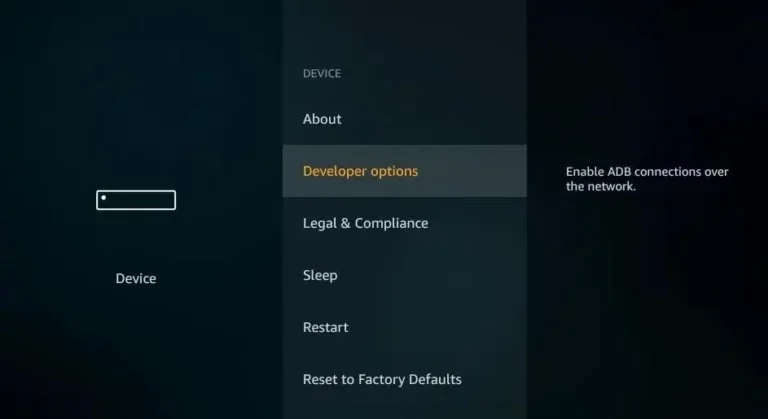
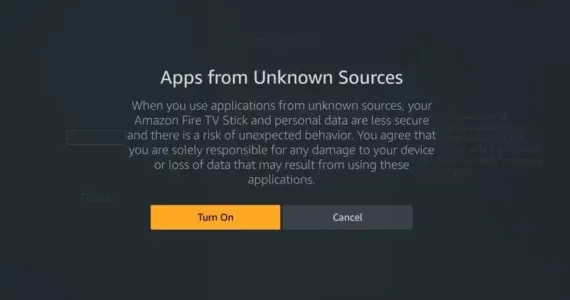
Enable the appropriate installation permission for Downloader or unknown apps. On Fire TV versions that use Install unknown apps, enable Downloader there if the device asks for permission. Older Fire OS versions may show an Apps from Unknown Sources control instead.
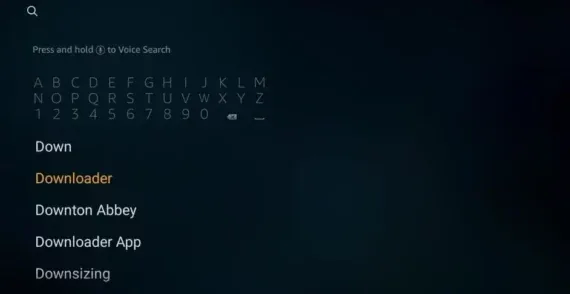
Search for Downloader in the Amazon Appstore, install it, then open the app. If Fire TV asks for permission to install unknown apps, make sure Downloader has the permission described in the previous step.
Open Downloader and enter the code for the player Teleget has directed you to. Continue to the download page and download the Teleget-recommended player if applicable.
Use the player/code that applies to your Teleget setup. Do not substitute an unrelated public download address or code.
Complete the player installation, then open the installed IPTV player from your Fire TV apps. Teleget does not require every customer to use the same third-party player; use the player that applies to the setup you were given.
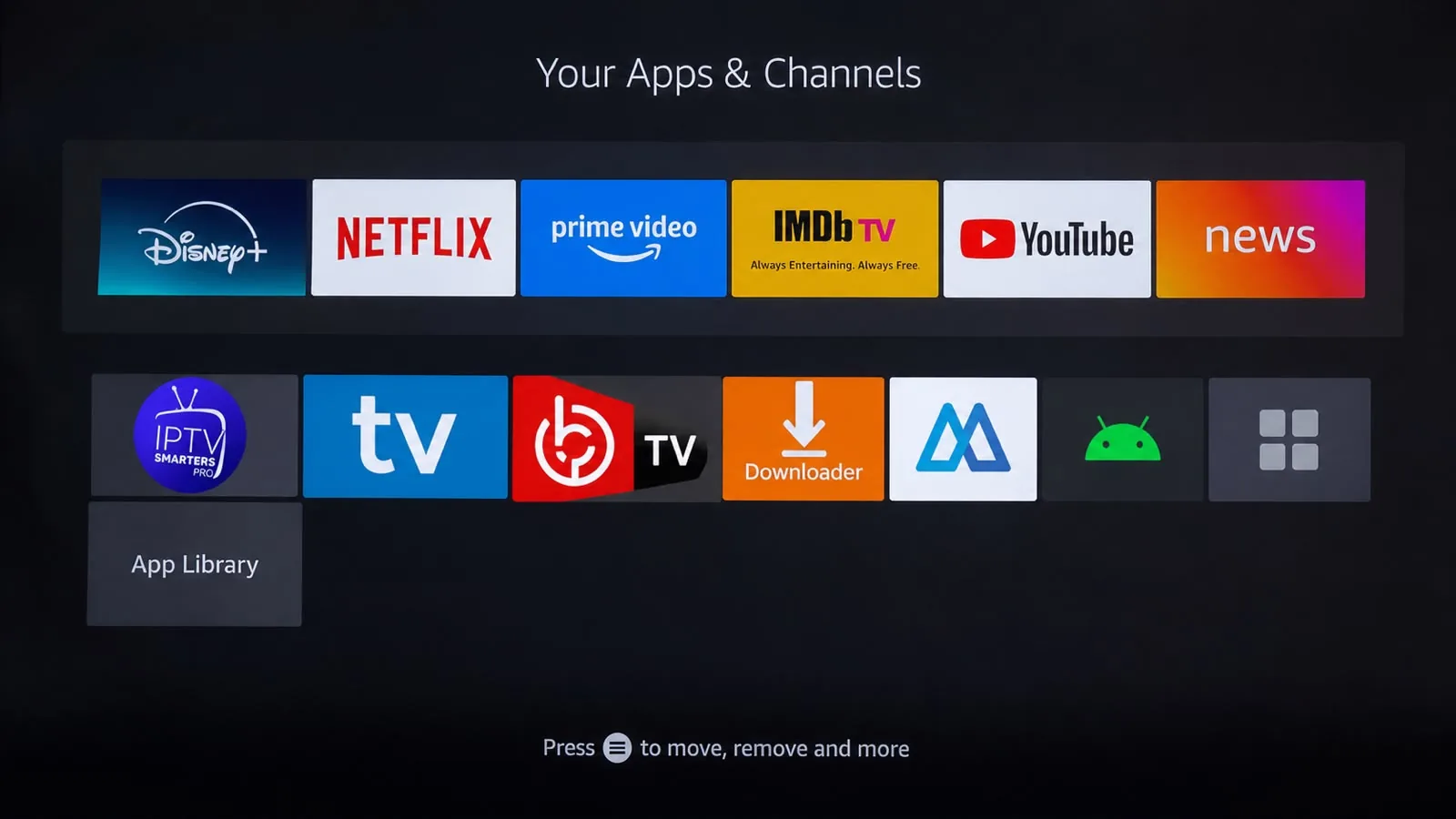
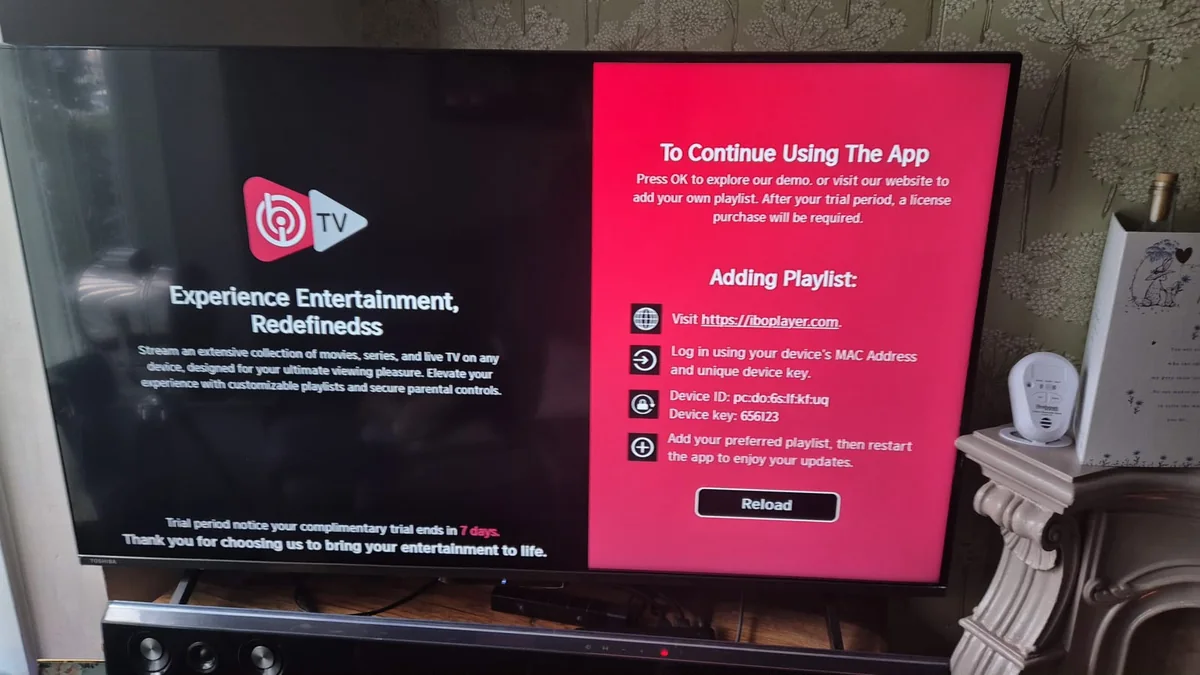
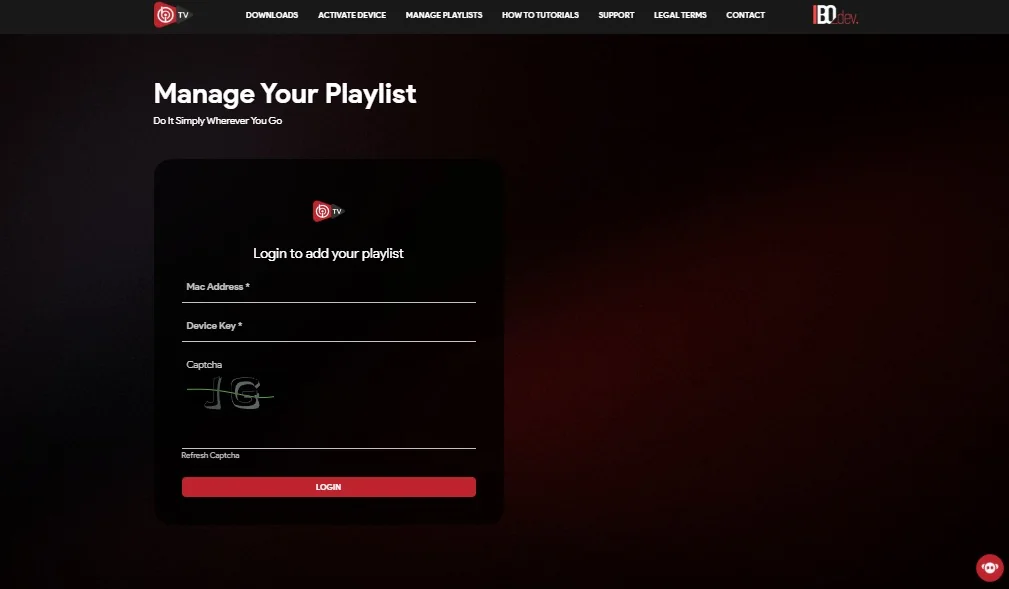
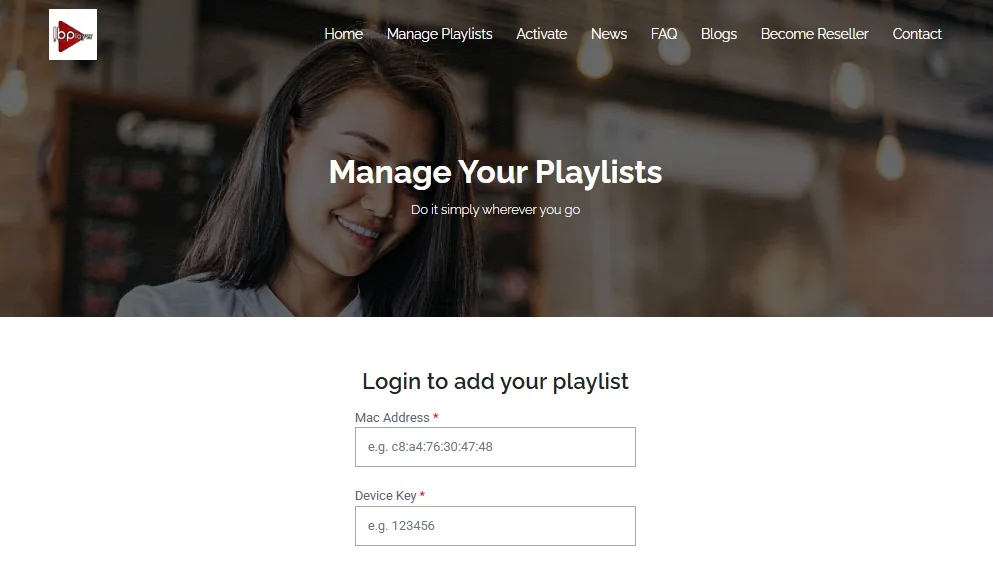
After installing IBO Player or IBO Pro, open the app first. The app displays a MAC Address and Device Key. Keep both details available: they are used to manage the playlist, and Teleget still needs the device MAC Address to activate the app.
For IBO Player, use the official device login and enter the MAC Address and Device Key shown inside the app: Manage your IBO Player playlist.
For IBO Pro, use the official playlist-management login with the MAC Address and Device Key shown inside the app: Manage your IBO Pro playlist.
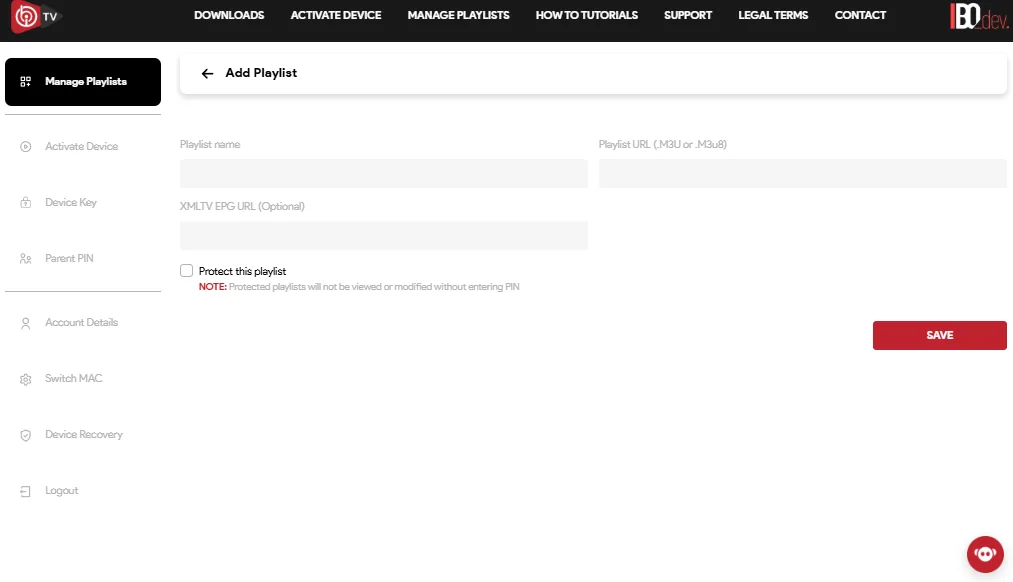
After logging in, add the Teleget playlist details supplied with your subscription. Depending on the setup information provided, this may be an M3U playlist or Xtream Codes setup.
If you would rather not complete the playlist setup yourself, send Teleget a screenshot showing the MAC Address and Device Key displayed inside IBO Player or IBO Pro. Teleget can then add the playlist for you.
In all cases, Teleget still needs the device MAC Address to activate the app. Standard 12-month plans include app activation free for 12 months. The Premium plan includes app activation free for lifetime.
Save or add the playlist or account, then wait for the player to load the Teleget service and content. Once loading completes, open the Teleget entry you just configured and begin viewing.
Fire TV troubleshooting
These checks are ordered so you can tell whether the issue is the Fire TV connection, the player, the chosen method or the entered subscription information.
Confirm the Fire TV itself has internet access. A working phone or laptop on the same network does not confirm the Fire TV connection.
Make sure you are opening a compatible player on the Fire TV you are configuring. If the player cannot be used on that device, choose another compatible option.
Check that the player is set to Portal, M3U or Xtream according to the setup information supplied to you.
Compare every character in the entered URL, username, password or other supplied field. Remove accidental spaces rather than guessing new values.
Reopen or reload the player and confirm the intended Teleget service or playlist is selected. Avoid changing several fields at the same time.
Note the point where setup stops and any exact error text shown by the player. That gives human support a clearer starting point.
Human support
Teleget support is available through WhatsApp and email. No support hours or response time are promised here.
Keep account details, playlist links and server information private. Share sensitive subscription information only through the appropriate support conversation when necessary.
Use the IPTV buffering and playback troubleshooting guide for Wi-Fi, device load, DNS, buffer-setting and playback checks. If you are still choosing a service, you can also review the current Teleget subscription plans.