
“App not installed” appears
Delete any older version of the same player app if present, restart the Android TV device, then try the installation again.
Android TV / TV Box setup
About 5 minutes · Chromecast, Nvidia Shield, Sony and most Android TV boxes. Install the TELEGET-supported IBO Player / IBO Pro app, then choose the playlist setup option that suits you.
Before you start
The first part of setup is installing the player. After that, IBO Player / IBO Pro shows the device details TELEGET needs for playlist setup.
Use the device you want to watch on and make sure it is connected to the internet.
Keep the account details available for the manual playlist option later in the guide.
After IBO Player / IBO Pro opens, you will need to see the Device ID / MAC Address and Device Key clearly enough to screenshot them.
Android TV installation sequence
These instructions follow the same TELEGET IBO Player / IBO Pro workflow used on Fire TV, adapted for Android TV and Android TV Box devices.
On your Android TV or TV Box, open the Google Play Store and search for Downloader.
Install the official orange Downloader app.
Open Downloader and enter this exact code in the URL / code field:
Enter the code exactly as shown, then press Go.
Wait for the download to finish, then select Install. When installation is complete, open the installed TELEGET-supported IBO Player / IBO Pro app.
When IBO Player / IBO Pro opens, look for the Device ID / MAC Address and Device Key shown by the app. Take a clear screenshot showing both.
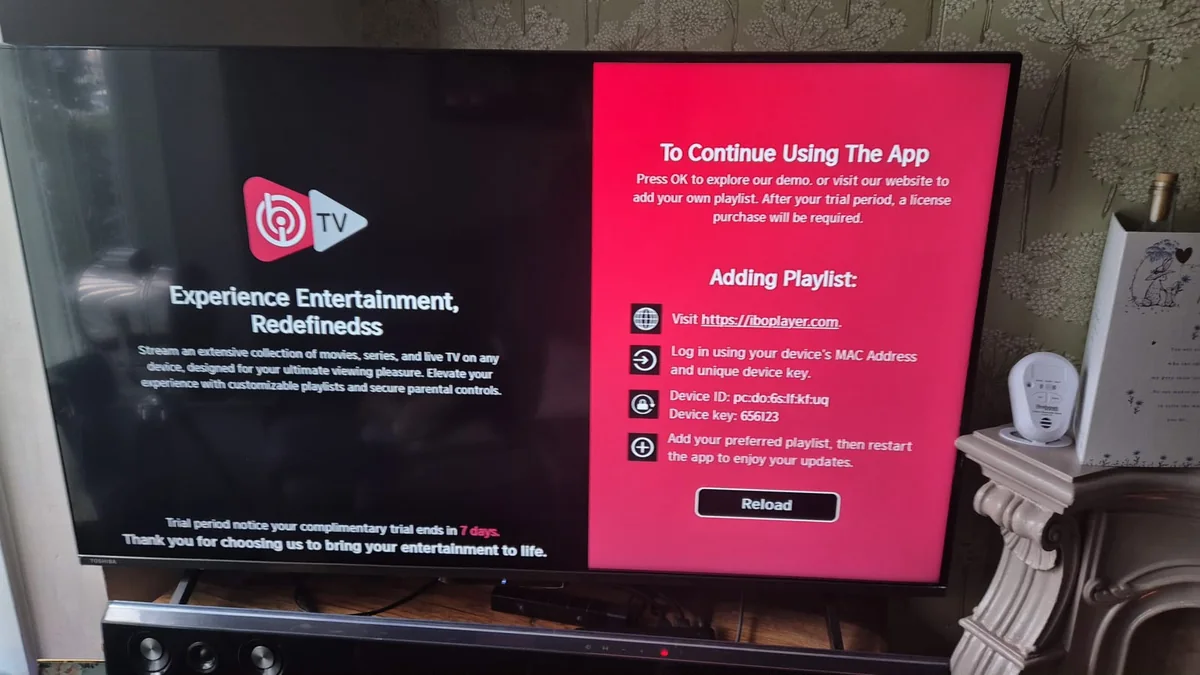
Send TELEGET the screenshot containing the Device ID / MAC Address and Device Key. Our team can use those details to add/configure the playlist for you.
Use Contact Support to open the existing TELEGET support form. TELEGET also has an existing WhatsApp support option for sending the screenshot.
Use the IBO Player / IBO Pro playlist-management workflow and the TELEGET account details from your welcome email. The correct manual setup can use the M3U playlist or Xtream Codes API details supplied by TELEGET.
Open the official playlist-management page for the player you installed. Enter the MAC Address and Device Key shown in IBO Player or IBO Pro.
IBO Player: Open IBO Player playlist management.
IBO Pro: Open IBO Pro playlist management.
After logging in, add the M3U playlist or Xtream Codes API connection details exactly as provided in your TELEGET welcome email.
Use only the TELEGET connection details supplied for your account; do not substitute public example URLs, servers, usernames or passwords.
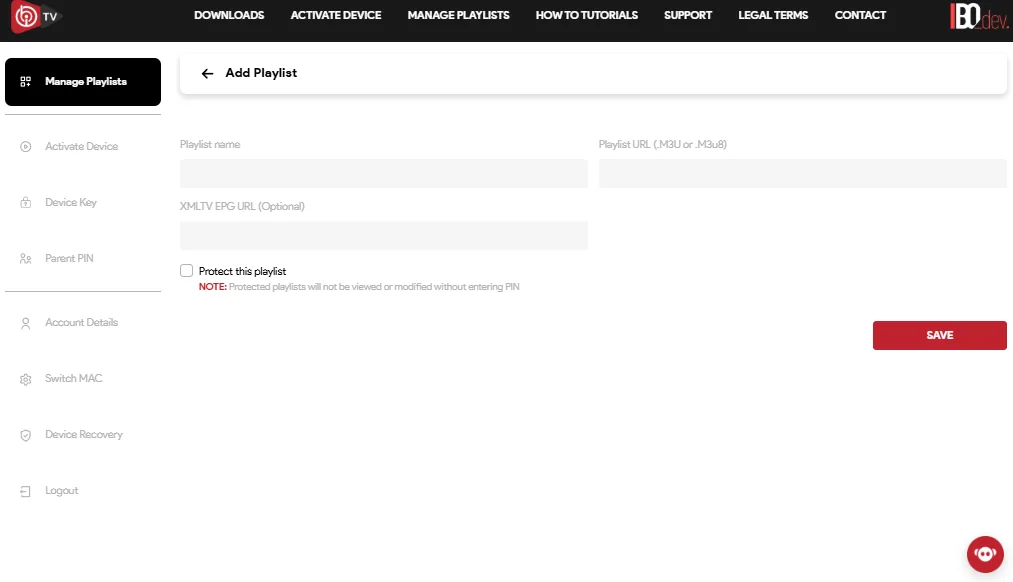
Save or add the playlist, allow the player to load the TELEGET service, then open the configured entry and start watching.
Android TV troubleshooting
After installation, the most common next step is checking the device details and playlist configuration before changing anything else.
Delete any older version of the same player app if present, restart the Android TV device, then try the installation again.
Reopen IBO Player / IBO Pro and take another clear screenshot showing the full Device ID / MAC Address and Device Key.
Reopen the player and check that the TELEGET entry you configured is selected.
Recheck the M3U or Xtream Codes API details from your TELEGET welcome email. Do not guess replacement values.
Confirm the Android TV screen or box itself is connected to the internet before trying the player again.
Send TELEGET the device screenshot and explain which step is failing so support can start from the correct point.
Stuck at any step?
We help customers set up their devices every day. Contact us with the details and we will guide you through the setup.
Do not publish TELEGET credentials, playlist links or server information. Send setup details only through the existing private TELEGET support channels.
Use the IPTV buffering and playback troubleshooting guide for further playback checks.